

track impacted code of each pull request to create dynamic queues
- PR A with impacted target list
[ frontend ] - PR B with impacted target list
[ backend ] - PR C with impacted target list
[ frontend, backend ] - PR D with impacted target list
[ docs ]

Three dynamically provisioned queues split by impacted target: frontend runs A then C, backend runs B then C, and docs runs D. C tests predictively against both A and B.
How does it work?
To run in parallel mode, each pull request needs to be inspected for its impacted targets. This is a fancy way of saying that each pull request needs to report what parts of the codebase are changing. In the example above, the pull requests A, B, and D can be tested in isolation since they affect distinct targets -backend, frontend and docs. The C pull request affects both frontend and backend and would be tested predictively with the changes in both A and B.
To understand the interactions or dependent changes between pull requests, Trunk Merge Queue provides an API for posting the list of impacted targets that result from code changes in every PR. When Trunk Merge Queue is running in parallel mode, pull requests will not be processed until the list of impacted targets are uploaded.
What are Impacted Targets?
Impacted targets are metadata that describe the logical changes of a pull request. An impacted target is a string that can be as expressive as a Bazel target or the name of a file folder. Calculating impacted targets with a purpose-built build system will provide absolute correctness for the merge queue, but more lightweight glob or folder-based approaches can also work with fewer guarantees around correctness.Posting impacted targets from your pull requests
We ship several pre-built solutions for popular build systems to automatically calculate and post the impacted targets of a pull request. If you are using another build system, we would be happy to work with you to add support for your specific build system.
Bazel

Nx
Other
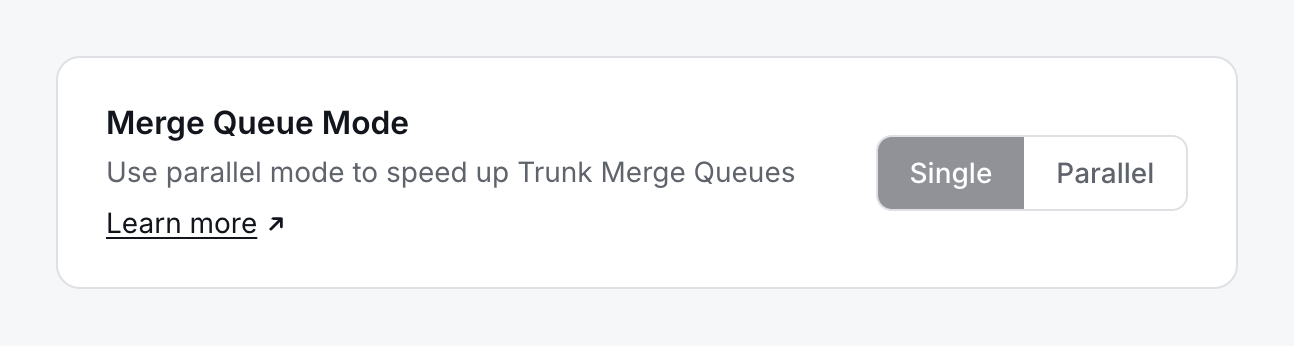
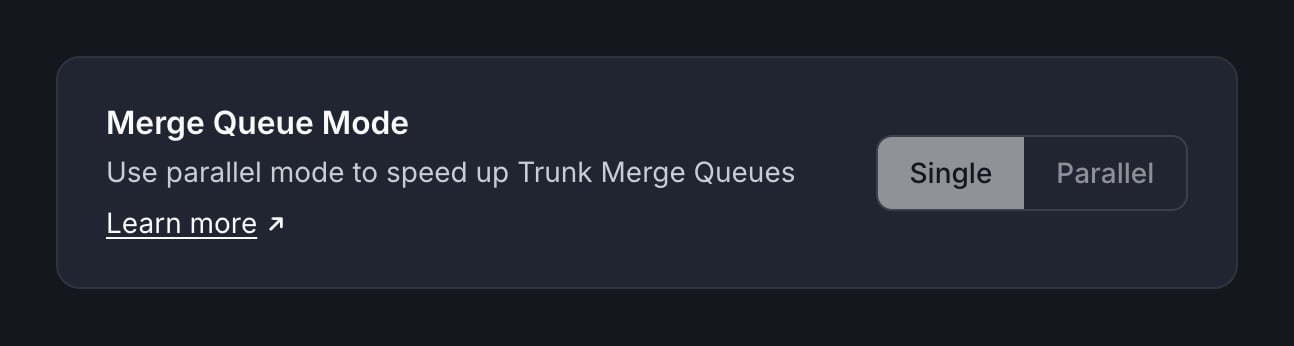
Merge can be swapped between
Single and Parallel mode at any time. If there are no PRs in the merge queue when switching, the switch will be immediate. If there are PRs in the queue, then Merge will go into the Switching Modes state, where it’ll wait for all currently testing PRs to merge before switching modes. During this time, PRs will not be able to enter the queue.
Switching modes can be done from the Merge Queue Mode section of your queue’s Settings tab (open Merge Queue, select your queue, then Settings).
enabling parallel mode
Cutting over from single to parallel mode
In single mode, a pull request only needs to pass branch protection to be tested. In parallel mode it needs one more thing: impacted targets uploaded for the head SHA. A PR stays in theQueued state until both conditions are met, so the cutover is mostly about making sure every PR that could enter the queue has targets posted for it.
Land the impacted-targets job before you switch. You don’t have to flip to parallel mode and add the CI job at the same time. While the queue is still in single mode, uploads to /setImpactedTargets are stored but not used for scheduling, so shipping the job early is safe and won’t change queue behavior. When you switch to parallel mode, every PR the job has already run for will have its targets ready.
Backfill open PRs so they don’t hang. A PR that was opened before the job existed — or one that passed CI long ago and never re-ran it — has no impacted targets. After cutover it will sit in Queued indefinitely, because there is no timeout that applies a fallback (and applying ALL automatically would collapse every lane onto that PR, defeating parallelization). Post targets for these PRs before or right after the switch. Sending ALL for each open PR targeting the merge branch is a reasonable one-time backfill; the next time the job runs on a new commit, it overrides the ALL with the real list (last upload wins).
Require a recent merge base for new PRs. Backfilling handles today’s open PRs, but a stale branch that passed CI before the job existed can still be enqueued later as long as its status checks stay green. Raising your minimum merge-base / staleness requirement forces those branches to rebase, which re-runs the impacted-targets job and guarantees every newly enqueued PR has targets.
Monitoring Parallel Queue Performance
Once you’ve enabled parallel mode and configured impacted targets, you can analyze how well the parallel workflow performs for different parts of your codebase. The Health dashboard allows you to filter all metrics by impacted targets, so you can:- Compare merge times between different targets (e.g., frontend vs backend)
- Identify which targets experience the most failures
- Optimize queue configuration for your highest-priority code paths
- Demonstrate the value of parallel mode to engineering leadership
See Filter Metrics by Impacted Targets for detailed guidance on using this feature.